
Invoice Settings UI
Use this UI to manage your invoicing settings.
You can use this UI to configure settings for invoicing, like email delivery options for a specified country or region or for all regions.
To access the UI, click Invoice Settings under the Invoice IQ node. The following UI is displayed:
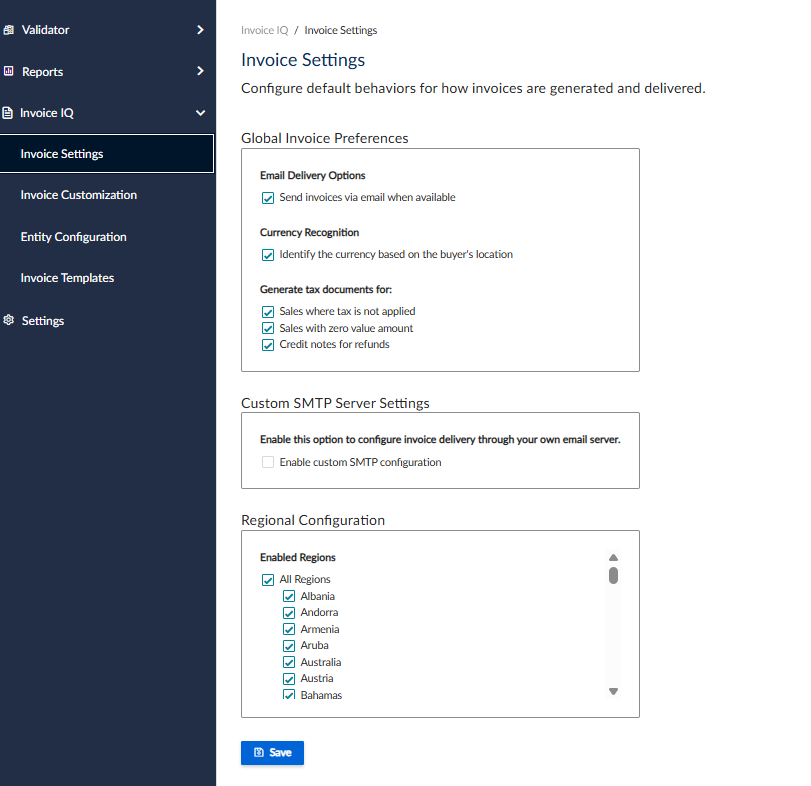
Invoice Settings UI
Global Invoice Preferences
| Setting | Description |
|---|---|
| Email Delivery Options | Groups options for email delivery of invoices. |
| Send invoices via email when available | Select this checkbox to send invoices via email. |
| Currency Recognition | Groups currency settings. |
| Identify the currency based on the buyer's location | If selected, the service uses the buyer's location to identify the currency. |
| Generate tax documents for: | Specify if you want to generate tax documents in the following use cases: |
| Sales where tax is not applied | If you select this checkbox, documents are generated for transactions where no tax is applies. |
| Sales with zero value amount | If you select this checkbox, documents are generated for transactions where the value is zero. |
| Credit notes for refunds | If you select this checkbox, credit notes will be generated for refunds. |
Custom SMTP Server Settings
To integrate a custom SMTP server, click the Enable custom SMTP configuration checkbox.
The following UI is displayed where you can specify the details:
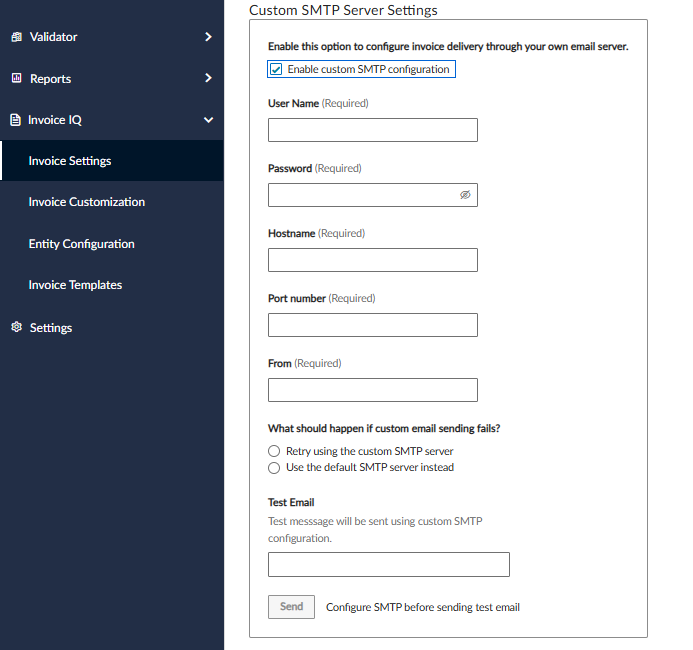
These settings are explained in the following table:
| Setting | Required? | Description |
|---|---|---|
| User Name | Yes | Specify a user to access the server. |
| Password | Yes | Specify the user's password. |
| Hostname | Yes | Specify the host name. |
| Port number | Yes | Specify the port. |
| From | Yes | |
| What should happen if customer email sending fails? | No | Select what should happen when an email is not sent. |
| Retry using the custom SMTP server | No | |
| Use the default SMTP server instead | No | |
| Test Email | No | Specify an email address to test the connection. |
Regional Configuration
Here, you can select the region or country that you want to apply these settings to. You can apply them to all regions or individual regions and countries.
When you have finished the settings, click Save.
Updated 4 months ago
Did this page help you?