
Entity Configuration
Create and manage the business entities for the invoicing service.
The Entity Configuration feature lets you create and manage the business entities that the service uses to generate tax-compliant digital invoices. Each business entity identifies the invoice issuer and the required tax registration details for tax schemes, such as value added tax (VAT) and the import one-stop shop (IOSS).
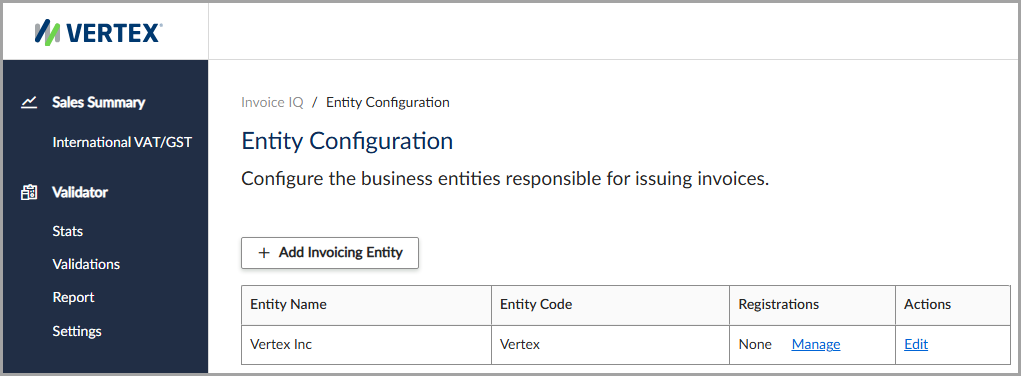
The Entity Configuration feature.
Add an invoicing entity
To add an invoicing entity, follow these steps:
- Select Invoice IQ > Entity Configuration.
- Click Add Invoicing Entity.
- Enter all applicable information, noting all required fields.
- Click Save and Add Registration.
Add a tax registration
To add a tax registration, follow these steps:
- On the Registrations page, enter all applicable information, noting all required fields.
- Click Save Registration.
Field descriptions for an invoicing entity
This table lists the available fields in the Add Invoicing Entity feature:
| Field | Description |
|---|---|
| Entity Code | The unique business entity identifier. |
| Business Name | The name of the business entity. |
| Invoice Number Format | Indicates the format that you want to use for the invoice number. |
| The email address for the business entity. | |
| Country | The country where the business resides. |
| Street Address 1 | The first line of the street address. |
| Street Address 2 | The second line of the street address, if needed. |
| City | The name of the city. |
| County/Province | The name of the county, province, or subdivision. |
| State/Province | The name of the state, province, or subdivision. |
| Zip/Postal Code | The postal or ZIP Code. |
Field descriptions for a tax registration
This table lists the available fields in the Registrations feature:
| Button/Field | Description |
|---|---|
| Country | The country for the tax registration. |
| State/Province/etc. | The name of the state, province, or subdivision. |
| Type | Indicates the tax registration scheme, for example, a Value Added Tax (VAT) Registration. |
| Registration Number | The business tax identification number. |
| Name | The representative's name. |
| Country | The representative's country. |
| Street Address 1 | The first line of the representative's address. |
| Street Address 2 | The second line of the representative's address. |
| City | The representative's city. |
| County/Province | The name of the county, province, or subdivision. |
| State/Province/etc. | The name of the state, province, or subdivision. |
| Zip/Postal Code | The ZIP Code or postal code of the representative's address. |
| Upload Signature | Select this option to upload an image file for the business logo. |
| Set Signature URL | Select this option to enter the web address of the business logo image file. |
Previously configured signatures appear in the Previous Signature section.
Updated 4 months ago