
Invoice Customization
Configure the invoice document and change the look and feel to meet your business requirements.
The Invoice Customization feature enables you to define the elements of your invoice customization to control how invoices appear across your business entities.
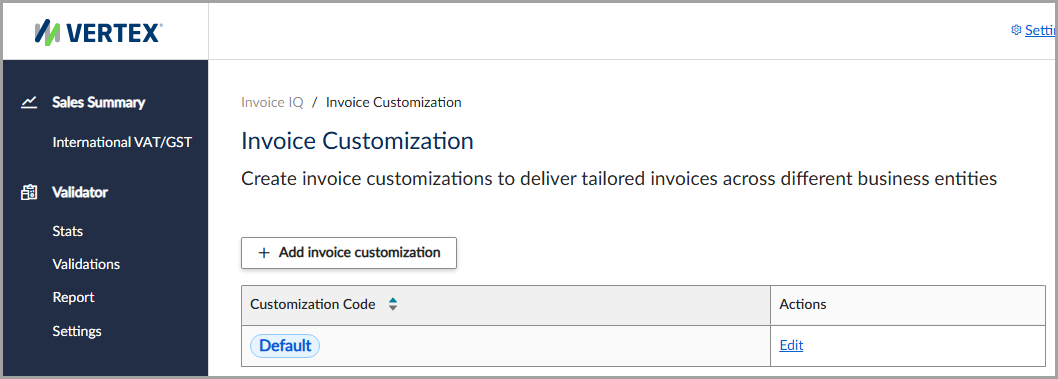
The Invoice Customization feature.
Default invoice customization
If you create only one invoice customization, the service automatically designates it as the default customization and applies it to all generated invoices.
If you create multiple invoice customizations, you must include the appropriate customization code in the invoice request to specify which customization to apply.
If multiple customizations exist and the request does not include a customization code, the service automatically applies the default invoice customization.
Add an invoice customization
To add an invoice customization, follow these steps:
- Select Invoice IQ > Invoice Customization.
- Click Add Invoice Customization.
- Enter all applicable information, noting all required fields.
- Click Save Invoice Customization.
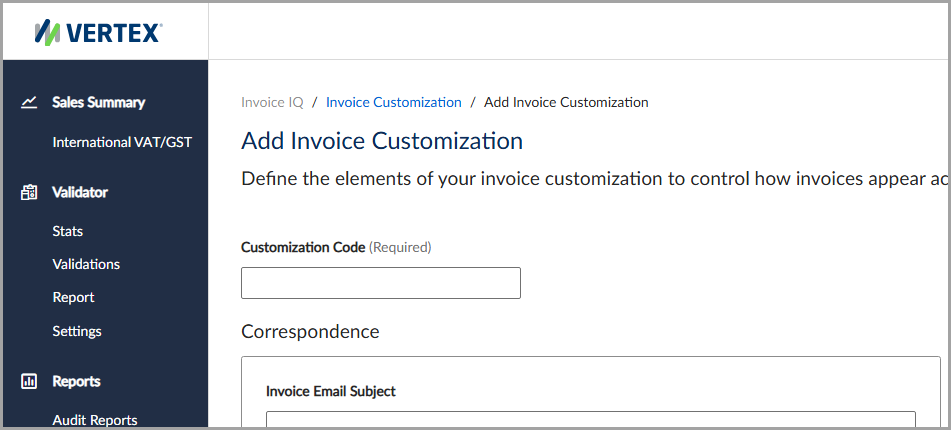
The Add Invoice Customization feature.
Field descriptions
This table lists the available fields and their descriptions.
| Field | Description |
|---|---|
| Customization Code | The unique identifier for the invoice customization. |
| Invoice Email Subject | The subject line for the invoice email notification. |
| Credit Note Email Subject | The subject line for the credit note email notification. |
| Send From Email | The sender's email address. |
| Reply To Email | The email address used for replies. |
| Custom Footnote | The user-defined footnote in the email notification. |
| Upload Logo | Select this option to upload an image file for the business logo. |
| Set Logo URL | Select this option to enter the web address of the business logo image file. |
Previously configured logos appear in the Previous Logo section.
Updated 4 months ago