
Entity Configuration
Create and manage the business entities for the service.
The Entity Configuration feature lets you create and manage the business entities that the service uses to generate tax-compliant digital invoices. Each business entity identifies the invoice issuer and the required tax registration details for tax schemes, such as value added tax (VAT) and the import one-stop shop (IOSS).
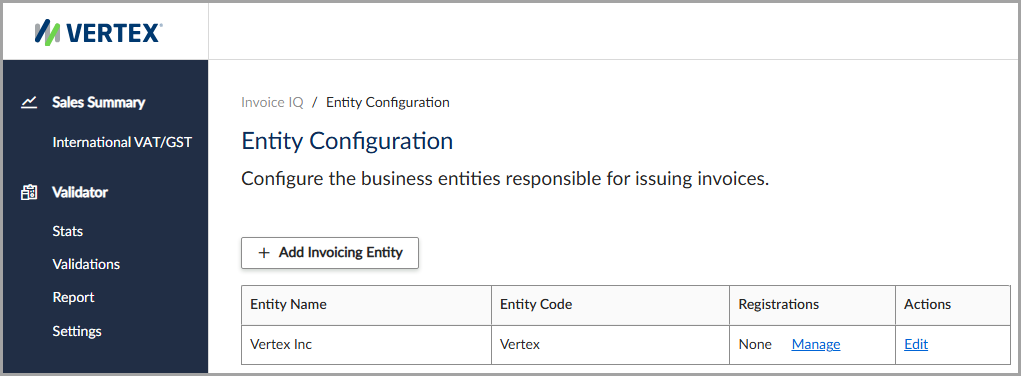
The Entity Configuration feature.
Add the invoicing entity
To add the invoicing entity, follow these steps:
- Select Invoice IQ > Entity Configuration.
- Click Add Invoicing Entity.
- Enter all applicable information, noting all required fields.
- Click Save and Add Registration.
Add the tax registration
To add the tax registration, follow these steps:
- On the Registrations page, enter all applicable information, noting all required fields.
- Click Save Registration.
Field descriptions for an invoicing entity
This table lists the available fields in the Add Invoicing Entity feature:
| Field | Description |
|---|---|
| Entity Code | The unique business entity identifier. |
| Business Name | The name of the business entity. |
| Invoice Number Format | Indicates the format that you want to use for the invoice number. |
| The email address for the business entity. | |
| Country | The country where the business resides. |
| Street Address 1 | The first line of the street address. |
| Street Address 2 | The second line of the street address, if needed. |
| City | The name of the city. |
| County/Province | The name of the county, province, or subdivision. |
| State/Province | The name of the state, province, or subdivision. |
| Zip/Postal Code | The postal or ZIP Code. |
Field descriptions for a tax registration
This table lists the available fields in the Registrations feature:
| Button/Field | Description |
|---|---|
| Country | The country for the tax registration. |
| State/Province/etc. | The name of the state, province, or subdivision. |
| Type | Indicates the tax registration scheme, for example, a Value Added Tax (VAT) Registration. |
| Registration Number | The business tax identification number. |
| Name | The representative's name. |
| Country | The representative's country. |
| Street Address 1 | The first line of the representative's address. |
| Street Address 2 | The second line of the representative's address. |
| City | The representative's city. |
| County/Province | The name of the county, province, or subdivision. |
| State/Province/etc. | The name of the state, province, or subdivision. |
| Zip/Postal Code | The ZIP Code or postal code of the representative's address. |
| Upload Signature | Select this option to upload an image file for the business logo. |
| Set Signature URL | Select this option to enter the web address of the business logo image file. |
Previously configured signatures appear in the Previous Signature section.
Updated 3 months ago
Did this page help you?